Selecting pixels
You can edit pixels over an entire canvas or choose one of the selection tools to constrain your editing to a particular area of an image:
 The
Marquee tool selects a rectangular area of pixels in an image.
The
Marquee tool selects a rectangular area of pixels in an image.
 The Oval Marquee tool
selects an elliptical area of pixels in an image.
The Oval Marquee tool
selects an elliptical area of pixels in an image.
 The Lasso tool selects
a freeform area of pixels in an image.
The Lasso tool selects
a freeform area of pixels in an image.
 The Polygon Lasso
tool selects a straight-edged freeform area of pixels in an image.
The Polygon Lasso
tool selects a straight-edged freeform area of pixels in an image.
 The Magic Wand tool
selects an area of similarly colored pixels in an image.
The Magic Wand tool
selects an area of similarly colored pixels in an image.
The pixel selection
tools draw selection marquees that define the area of selected pixels. After
you draw the selection marquee, you can manipulate it by moving it, adding to
it, or basing another selection on it. You can edit the pixels inside the selection,
apply filters to the pixels, or erase pixels without affecting the pixels beyond
the selection. You can also create a floating selection of pixels that you can
edit, move, cut, or copy.
Create a pixel selection
Next you’ll select the pixels that make up the car image that you created, and copy and paste the pixels as a new object.
Open: the Car image created in the previous lesson.
Choose: the Zoom tool in the View section of the Tools panel.
Click: once on the image.
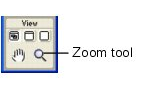
The view is magnified to 150%. Zooming in allows you to better see what you
are selecting and gives you finer control over your selection.
Click and hold down the mouse button on the Lasso tool in the Bitmap section of the Tools panel. Choose the Polygon Lasso tool from the pop-up menu that appears.
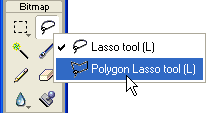
The Polygon Lasso tool allows you to draw a selection around pixels using a series of straight lines. You’ll use the Polygon Lasso tool to select the pixels that make up the car image.
In the Property inspector, set the Edge option to Anti-alias.
Click with the Polygon Lasso tool pointer
on the top edge of the car, then click repeatedly around the edge of the car
to continue the selection.
Complete the selection by moving the pointer over the spot where you started
the selection. A small gray square appears beside the Polygon Lasso pointer
to indicate you are about to complete the selection.
Click to complete the selection.
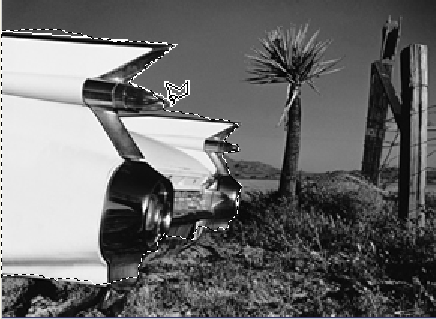
A marquee border appears around the pixels you selected.
Choose
Edit > Copy.
The selection is copied to the Clipboard.
Choose
Edit > Paste.
The car image is pasted into the document as a new bitmap object.
Choose the Pointer tool and double-click anywhere outside the bitmap to deselect it.
Press Delete.
Change the canvas colour to a contrasting colour.
You now have just the car on your canvas.
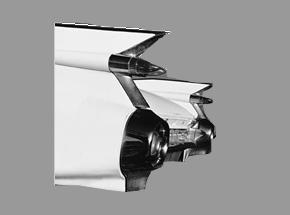
Save File as Car
Done in your Working with Images folder.