Drawing Shapes
Follow the given instructions to draw the following images.
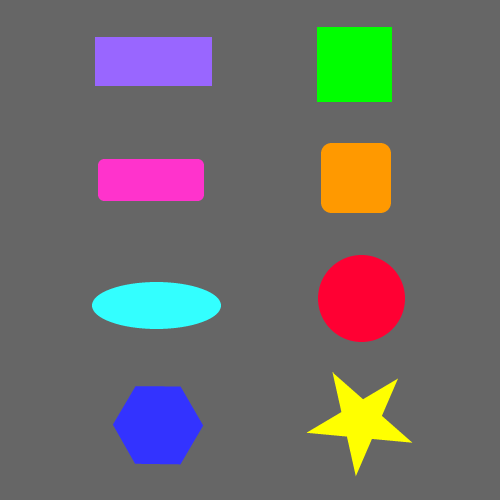
1) Create a New file in Fireworks according to the following: (colour: #666666)
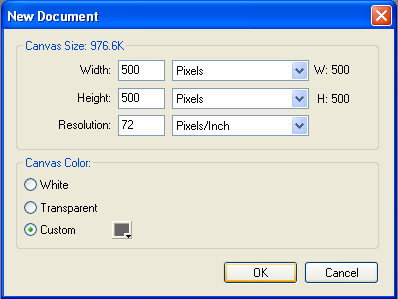
The size of the shapes you are asked to draw does not matter. Just be sure that all shapes fit on your 500 X 500 canvas.
2)
To draw a rectangle, choose the rectangle tool  ,
click and drag on your canvas.
,
click and drag on your canvas.
3)
To draw a perfect square, choose the rectangle tool ,
hold down the shift key while clicking and dragging on your canvas.
4)
To draw a rounded rectangle, choose the rounded rectangle tool
 , click and drag
on your canvas.
, click and drag
on your canvas.
5) To draw a rounded square, choose the rounded rectangle tool , hold down the shift key while clicking and dragging on your canvas.
6)
To draw an ellipse, choose the ellipse tool  ,
click and drag on your canvas.
,
click and drag on your canvas.
7)
To draw a perfect circle, choose the ellipse tool ,
hold down the shift key while clicking and dragging on your canvas.
8)
To draw a polygon, choose the Polygon tool  ,
,
- In the Property
inspector, do one of the following to specify the number of sides for the
polygon:
- Use the Sides pop-up slider to choose 6 sides.
- Enter
a number from 6 in the Sides text box.

- Then click and drag on your canvas.
- The Polygon
tool always draws from a center point.
9) To
draw a star, choose the Polygon tool ,
- In the Property
inspector, choose Star from the Shape pop-up menu.

- Enter the number of points for the star in the Sides text box, 5.
- Drag on the canvas to draw the star.
10) Change the colour of your images as follows:
- Rectangle: #9966FF
- Square: #00FF00
- Rounded Rectangle: #FF33CC
- Rounded Square: #FF9900
- Ellipse: #33FFFF
- Circle: #FF0033
- Polygon: #3333FF
- Star: #FFFF00
11) Create a folder in your Unit2 folder called Shape Effects, and save this file as Shapes.
12)
Proceed to Beveled Edges lesson.