Cropping a Document
By cropping, you can delete unwanted portions of a document. The canvas resizes to fit an area that you define.
In Fireworks,
Choose: Help > Using Fireworks.
Click: on the Index tab.
Type: pixel
Click: selecting
Click: Display
Click: Create a pixel selection
Click: Display
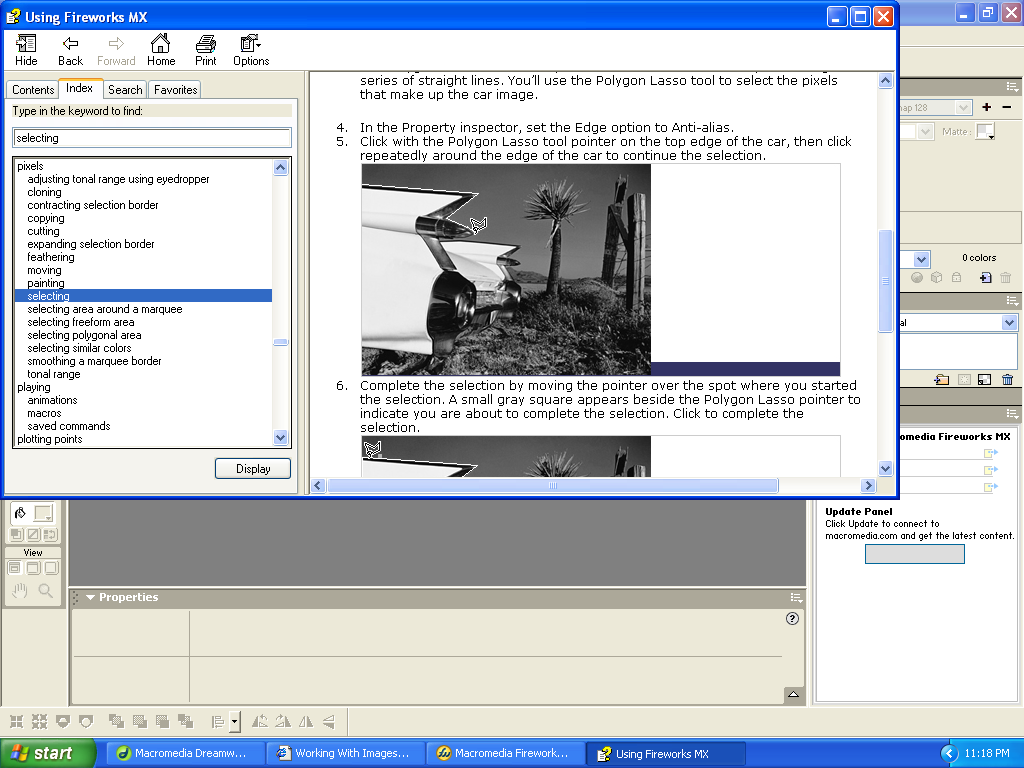
Scroll until the image of the back end of a car is entirely visible.
Press: Print Screen
Choose: File > New.
Click: OK
Right-click: and choose paste. You should now have an image of the help screen.
To crop this image so that only the picture portion is visible,
Choose: View > Zoom in (2 or 3 times)
Use the Hand Tool or the Scroll bars to get the car to the middle of the screen.
To crop a document:
Choose: the Crop tool
from the Tools panel or choose Edit > Crop Document.
Drag: a bounding box on the canvas. Adjust the crop handles until the bounding box surrounds the image of the car.
Double-click: inside the bounding box or press Enter to crop the document.
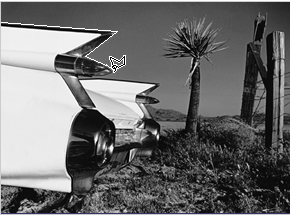
Create a folder called Working With Images and save this as Car.
Proceed to Selecting Pixels lesson.