Applying Beveled Edges
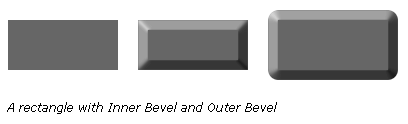
Applying a beveled edge to an object gives it a raised look. You can create an inner bevel or an outer bevel.
Follow the given instructions exactly to draw the following 3 rectangles.
1) Start Fireworks
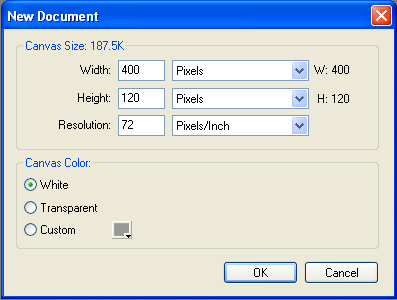
2) Create a new file according to the following:
3)
Using the Rectangle tool  ,
click and drag to create a rectangle.
,
click and drag to create a rectangle.
4) In the properties inspector, change the:
- Width: 108
- Height: 49
- Fill colour: #666665
5)
Click on the rectangle using the pointer tool 
6)
Using the pointer tool,
click on the rectangle,
- Press: Ctrl + C to copy
- Press: Ctrl + V to paste
7) Using the right arrow key, press and hold until the new rectangle is just to the right of the original one.
- Press: Ctrl +V to paste another copy
8)
Using the pointer tool ,
click and drag the 3rd rectangle to
the right side.
Your screen should look similar to the following:

9)
Using the pointer tool,
click on the second rectangle:
To apply a beveled edge to a selected object:
- Click the Add Effects button in the Property inspector, then choose a bevel option from the pop-up menu:
- Bevel and Emboss > Inner Bevel
- Leave the effect settings in the pop-up window as they are.
- You can change some of the effects to see what they do but then press the Esc key so that the default settings take effect.
- Click outside the window or press Enter to close it.
10)
Using the pointer tool,
click on the third rectangle:
To apply a beveled edge to a selected object:
- Click the Add Effects button in the Property inspector, then choose a bevel option from the pop-up menu:
- Bevel and Emboss > Outer Bevel
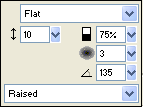
- Edit the effect settings in the pop-up window.
To change the colour of the bevel, choose the colour palette, then move the eyedropper over the first rectangle and click. The colour should have changed to the colour of the first rectangle. Leave all other settings as the defaults.
- When you finish, click outside the window or press Enter to close it.
12) You should now have 3 different rectangles.
Save the file as: Rectangles in the Shape Effects folder.
Proceed to the Gradient Fill.