Zooming and panning
Fireworks lets you zoom in or out at a preset or user-defined magnification percentage.
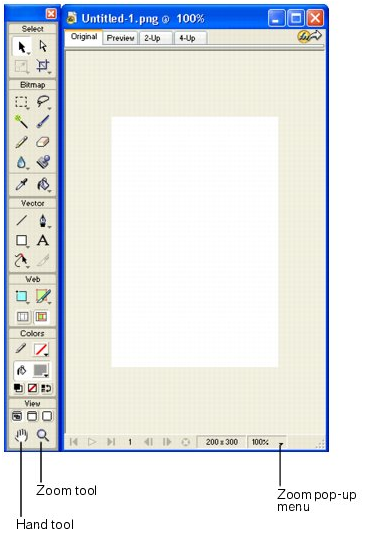
To zoom in using preset increments, do one of the following:
- Choose the Zoom tool and click to specify the new center point inside the document window. Each click magnifies the image to the next preset magnification.
- Choose a zoom setting from the Set Magnification pop-up menu at the bottom of the document window.
- Choose Zoom In or a preset magnification from the View menu.
To zoom out using preset increments, do one of the following:
- Choose the Zoom tool and Alt-click (Windows) inside the document window. Each click reduces the view to the next preset percentage.
- Choose a zoom setting from the Set Magnification pop-up menu at the bottom of the document window.
- Choose Zoom Out or a preset magnification from the View menu.
To zoom in on a specific area without being constrained by preset zoom increments:
- Choose the Zoom tool.
- Drag over
the part of the image that you want to magnify.
The size of the zoom selection box determines the precise magnification percentage, which is displayed in the Set Magnification text box.
Note: You cannot enter a magnification percentage in the Set Magnification text box.
To zoom out based on a specific area:
- Alt-drag a selection area with the Zoom tool.
To return to 100% magnification:
- Double-click the Zoom tool in the Tools panel.
To pan around the document:
- Choose the Hand tool.
- Drag the hand
pointer.
As you pan beyond the canvas, the view continues to pan so that you can work with pixels along the canvas edge.
To fit the document in the current view:
- Double-click the Hand tool.
There are no steps that needed to be saved in this lesson. Remember you will be responsible for demonstrating these techniques in your Practical Test.