Using the Tools panel
The Tools panel
is organized into six categories: Select, Bitmap, Vector, Web, Colors, and View.
In previous versions of Fireworks, you had to switch between vector and bitmap
modes. Now, you simply choose a tool and begin using it. The application applies
the tool appropriately.

Selecting a tool from a tool group
A small triangle in the lower right corner of a tool in the Tools panel indicates that it is part of a tool group. For example, the Rectangle tool is part of the basic shape tool group, which also includes the Rounded Rectangle, Ellipse, and Polygon tools.
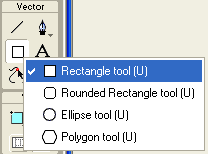
To choose an alternative tool from a tool group:
Click: the tool icon and hold down the mouse button.
A pop-up menu appears with tool icons, tool names, and shortcut keys. The currently selected tool has a check mark to the left of the tool name.
Drag: the pointer to highlight the tool you want, and release the mouse button.
The tool appears in the Tools panel, and the tool options appear in the Property inspector.
You will find that you must become very efficient at using the Tools in Fireworks. For this reason we will be completing the next steps.
Choose: File > Open
Find: the file named Canvas
Select: the Line tool
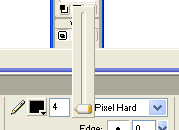
Change: the Tip Size in the properties inspector to 4 and the Colour to Black.
Draw: a line by click and dragging next to pointer tool.
The line should have the following dimensions.
Select: the Pointer tool
Select: the line you just created.
Press: Ctrl + C to copy
Press: Ctrl + V to paste



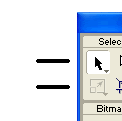
You have just created a copy of the line so that you can make them all the same size. With the Pointer tool selected, click and drag your copied line beside the next tool on the Tool Panel.
Repeat the steps to create a line for all remaining tools on the Tool Panel.
It is important to save often so that you do not lose important changes in the event of a power failure. So let's do that!
Choose: File > Save As
Type: Tools With Lines (make sure you are in the right folder)
Click: Save
Next we are going to create text boxes that will identify each of the tools on the Tool Panel.
Select: the Text tool
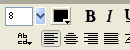
Change: (use the image to help set the properties)
- Font Size to 8.
- Text colour to Black
- Alignment to Left
Click and drag: on the canvas to create a textbox next to the line beside the pointer tool
Type: "Pointer: used to select objects."

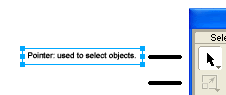
You may need to adjust the size of the text box to fit the text. To do this simply Select the pointer tool, select the text box, then click and drag the edges of the text box to the appropriate size.
Your task in now to repeat the necessary steps to identify and define each of the tools on the Tools Panel. If you need help to define the tools:
Choose: Help > Using Fireworks
Click: the Index tab
Type: tools as your keyword
Select: the tool you are defining
Click: Display
You may need to select an additional description for some tools.
The following is an example for the Pointer tool.
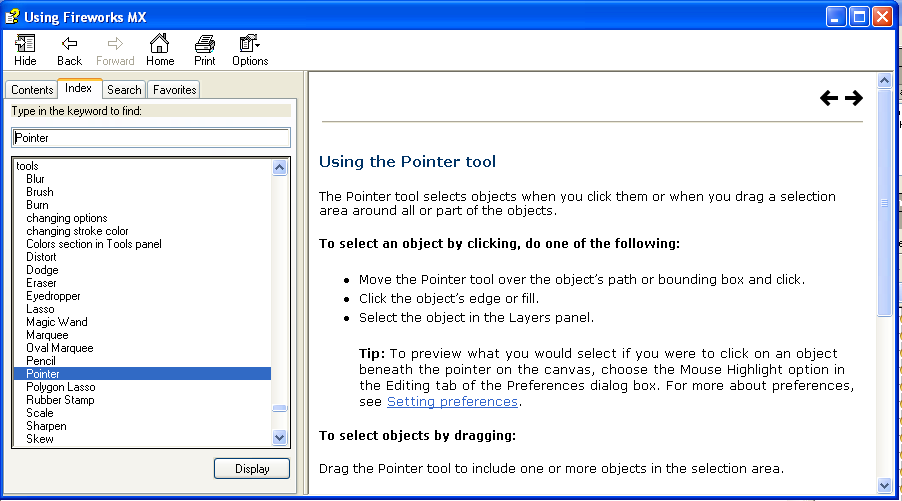
When you have completed identifing and defining each of the tools, Save
> file as Tools Done.