The Fireworks Work Environment
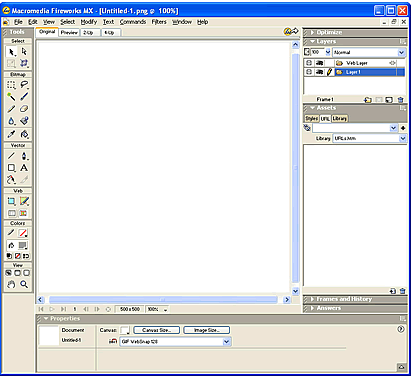
When you open a
document in Fireworks MX for the first time, the work environment is activated,
including the Tools panel, Property inspector, menus, and other panels. The
Tools panel, on the left side of the screen, contains labeled categories, including
bitmap, vector, and web tool groups. The Property inspector appears along the
bottom of the document by default and initially displays document properties.
It then changes to display properties for a newly chosen tool or currently selected
object as you work in the document. The panels are initially docked in groups
along the right side of the screen. The document window appears in the center
of the application.
Follow the steps throughout the Getting Started lessons to create your first item for evaluation for this unit.
For these lessons, you will need to keep the course website open so that you know the correct steps to follow. As well, you may be asked to use pictures from the website during the lessons.
To open Fireworks:
Click: Start --> Programs --> Macromedia --> Fireworks
When you first enter the program you may notice that most of the toolbars are greyed out or inactive. This is because we haven't create a new file to work on. Let's do that by moving on to the next section.