Creating a New Document
When you choose File > New to create a new document in Fireworks, you create a Portable Network Graphic, or PNG document. PNG is the native file format for Fireworks. After you create graphics in Fireworks, you can export them in other familiar web graphic formats, such as JPEG, GIF, and animated GIF. You can also export graphics to many of the popular formats used off the web, such as TIFF and BMP. Whatever optimization and export settings you choose, the original Fireworks PNG file is preserved to allow easy editing later.
To create a web graphic in Fireworks, you must first set up a new document or open an existing one. You can adjust the setup options later in the Property inspector.
To create a new document:
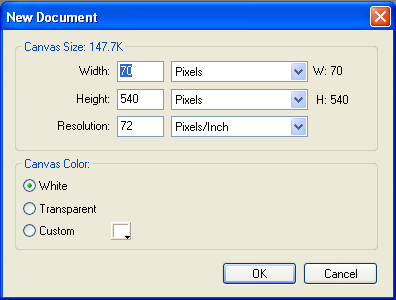
Choose: File > New.
The New Document dialog box opens
.
Enter: the canvas measurements in as you see above.
Enter: the default resolution (72 pixels per inch.)
Select: transparent for the canvas color.
NOTE: Use the Custom color box pop-up window to choose a custom canvas color.
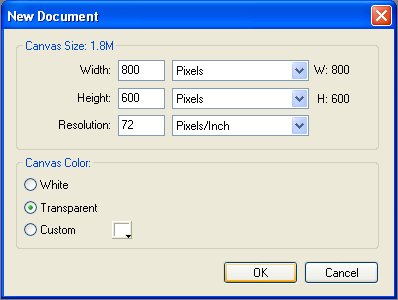
Click: OK to create the new document.
You have just created your first file. The file only contains a blank canvas but as we progress through these lessons we'll create much more. You do not need to save this file.
Let's continue!
Sometimes we don't know the measurements of the size of the object we're working with. In this situation, it is best to use copy and paste to create the dimensions for us.
To create a new document the same size as an object on the Clipboard:
From the website,
Copy: the Tools Panel from the Tools Panel lesson.
To do this, do one of the following:
- Right-click on the Tools Panel image, Select Copy.
- Highlight the Tools Panel image (it should appear bluish when highlighted), Select: Edit > Copy
Choose: File > New.
NOTE: The New Document dialog box opens with the width and height dimensions of the object on the Clipboard.
Set: the resolution to 72 pixels per inch and canvas color to White.
Click: OK.
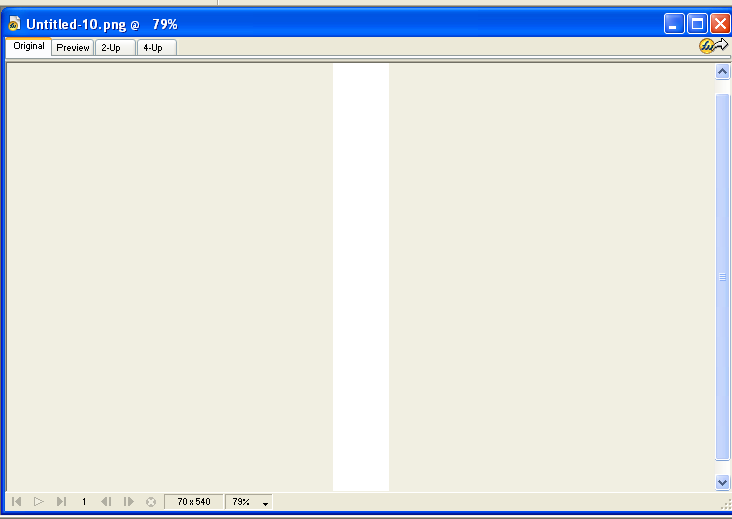
When you clicked OK, a new document should have been created that looks similar to the following:
Choose: Edit > Paste to paste the object from the Clipboard into the new document.
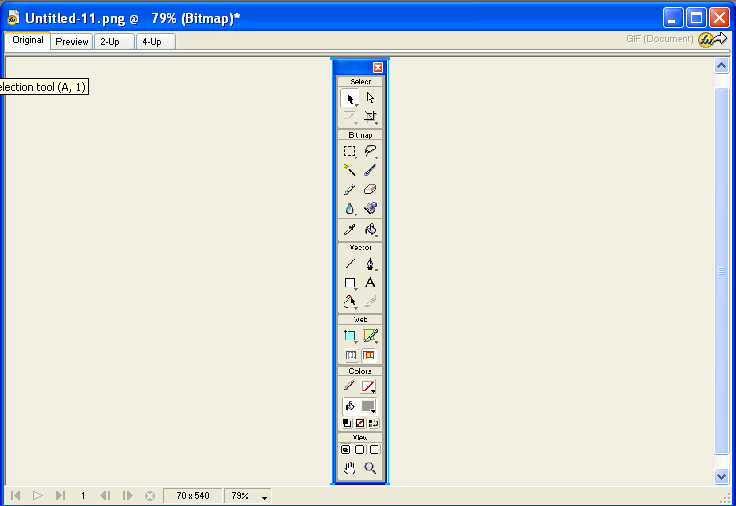
You should now have the toolbar pasted into Fireworks as follows:
Choose: File > Save As
Find the folder: TTI > Communication Theme > Fireworks
Create a folder: name it Getting Started inside Fireworks folder
Open this folder
Type: Tools Panel in the File name: box
Click: Save
Close the file