Changing canvas size, color, trimming and fitting
Fireworks makes it easy to change to the canvas size and canvas color.
In Fireworks:
Choose: File > Open
Open the file created in the last section (TTI > Communication > Fireworks > Getting Started > Tools Panel)
This file looks great but we would like to add to it. In order to add anything to this we need to have a bigger canvas.
To change the canvas size:
- Choose Modify > Canvas > Canvas Size.
- Enter:
- Width: 500 pixels
- Height: 600 pixels
- Click: the center Anchor button and click OK.
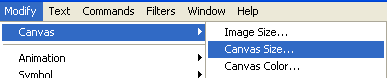
Note: By default, the center anchor is selected, indicating that changes to the size of the canvas are made on all sides.
To change the canvas color from the Modify menu:
- Choose: Modify > Canvas > Canvas Color.
- Choose:
to choose a Custom colour, do one of the following:
- Click the selected colour
- Type: #00CCFF in the text box

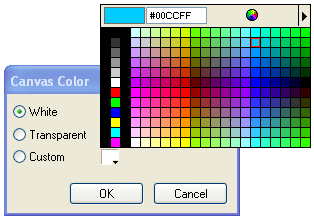
Although this colour looks beautiful, when we add text to the file it could be difficult to read. Let's use a different method to change the colour back to white.
To select the canvas color from the Property inspector:
- Click: on the canvas to select it.
In the Property inspector,

- Click:
the Canvas color box
 .
.
- Choose:
White using any of the following methods.
- Click: White from the pop-up window
- Type: #FFFFFF in the text box
- Click:
the eyedropper on a white color anywhere onscreen.
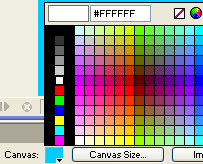
NOTE: To choose a transparent canvas, click the None button (
 )
in the swatches pop-up window.
)
in the swatches pop-up window.Choose: File > Save As
Find the folder: TTI > Communication Theme > Fireworks > Getting Started
Type: Canvas in the File name: box
Click: Save
Close: the file
To trim the canvas:
If your document contains extra space around the contents of the canvas, you can trim the canvas.
- Choose Modify > Canvas > Trim Canvas.
Portions of the
canvas that extend beyond the outermost pixels of the document are removed automatically.
Each edge of the canvas is cropped to the edges of the object or objects in
the document. If the document has more than one frame, Trim Canvas crops it
to include all objects in all frames, not just the current frame.
To fit the canvas:
You can modify the canvas by expanding it to fit objects that extend beyond its boundary.
- Choose Modify > Canvas > Fit Canvas.